




The Complete Guide to Display Dynamic Remarketing with GA4
Dynamic remarketing is the difference between showing a generic brand ad to everyone and showing the exact pair of running shoes a user left in their cart five minutes ago.
For eCommerce brands, travel sites, and listing businesses, this is often the highest-ROI campaign type available. It closes the loop on abandoned intent by automatically generating ads based on the specific products or services a user interacted with on your site.
This guide is a practical, step-by-step manual on implementing Display Dynamic Remarketing using Google Analytics 4 (GA4) as your data engine for Google Ads.
What Display Dynamic Remarketing in GA4 Really Means
Standard remarketing targets users who visited your site. Dynamic remarketing targets users based on what they saw.
When implemented correctly, GA4 sends specific event data (like User X viewed Product ID 123) to Google Ads. Google Ads then matches that ID against your product or business feed to automatically populate the ad with the right image, title, and price.
The Workflow:
- User views a product (GA4 captures
view_itemwithitem_id). - GA4 passes this data to Google Ads.
- Google Ads matches
item_idto your product feed. - An ad is dynamically generated for that exact product.
Prerequisites Checklist
Before building campaigns, make sure these foundations are in place:
- GA4 property installed and collecting data
- Active Google Ads account
- GA4 ↔ Google Ads account linking completed
- Ads personalization enabled in GA4 link settings
- Supported vertical selected (Retail, Travel, Jobs, Real Estate, Education, Custom)
- Product IDs on your site match feed IDs exactly
Required GA4 Events for Dynamic Remarketing
Dynamic ads depend on funnel-level signals. These events are mandatory:
1. view_item
Trigger: Product detail page view
Why it matters: Core signal that tells Google which product to show in ads.
2. add_to_cart
Trigger: Item added to cart
Why it matters: Indicates high intent and powers aggressive remarketing.
3. view_item_list
Trigger: Category or search results page view
Why it matters: Captures category-level interest.
4. purchase
Trigger: Successful transaction
Why it matters: Used for exclusions and cross-sell logic.
Required Parameters (With Examples)
Events must include contextual parameters to work dynamically.
- item_id – Must exactly match the product ID in your feed
- item_location_id – Used for non-retail verticals
- value – Product or order value
- currency – ISO currency code (USD, GBP, INR)
Implementation Example (JavaScript / GTM)
// Using gtag.js (JavaScript snippet)
gtag("event", "view_item", {
  currency: "USD",
  value: 99.99,
  items: [
    {
      item_id: "SKU_12345",
      item_name: "Stan Smith Sneakers",
      item_category: "Shoes",
      price: 99.99,
      quantity: 1
    }
  ]
});
// Using Google Tag Manager (Recommended)
window.dataLayer = window.dataLayer || [];
window.dataLayer.push({
  event: "view_item",
  ecommerce: {
    currency: "USD",
    value: 99.99,
    items: [
      {
        item_id: "SKU_12345",
        item_name: "Stan Smith Sneakers",
        item_category: "Shoes",
        price: 99.99,
        quantity: 1
      }
    ]
  }
});
Common Mistake: Using mismatched IDs (e.g., 123 in GA4 and
US-123 in the feed). These must be identical.
How GA4 Shares Data with Google Ads
You do not need manual exports or complex audience rules.
Once GA4 is linked to Google Ads and Ads Personalization is enabled, GA4 automatically shares event-level data. Google Ads uses this to build auto-generated dynamic remarketing lists.
- GA4 Audiences: Manual segmentation (e.g., High-Value Users)
- Dynamic Attributes: Raw product data used to render ads
Step-by-Step: Enable Display Dynamic Remarketing
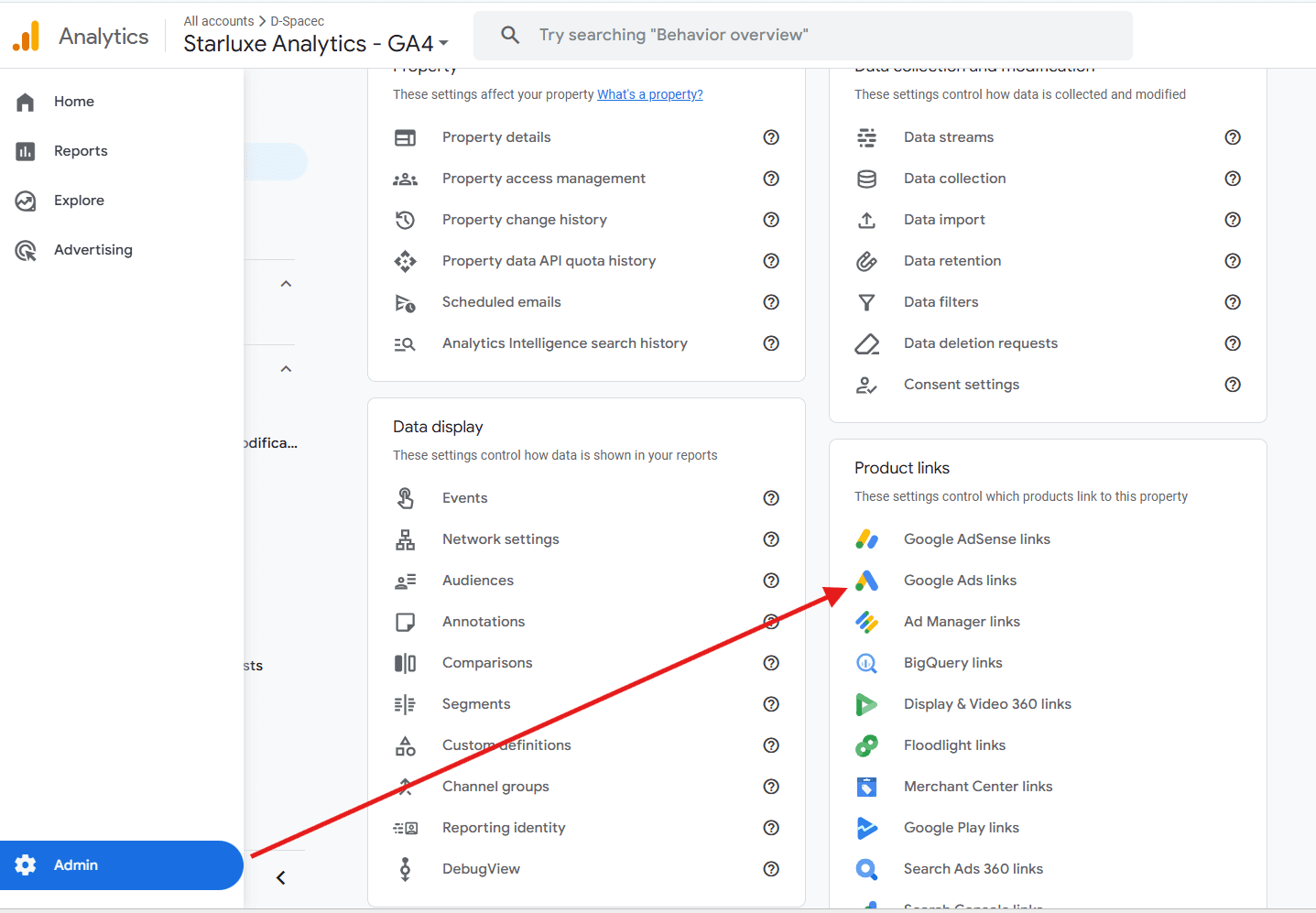
1. Link GA4 to Google Ads
- Admin → Product Links → Google Ads Links
- Link your Google Ads account
- Enable Personalized Advertising
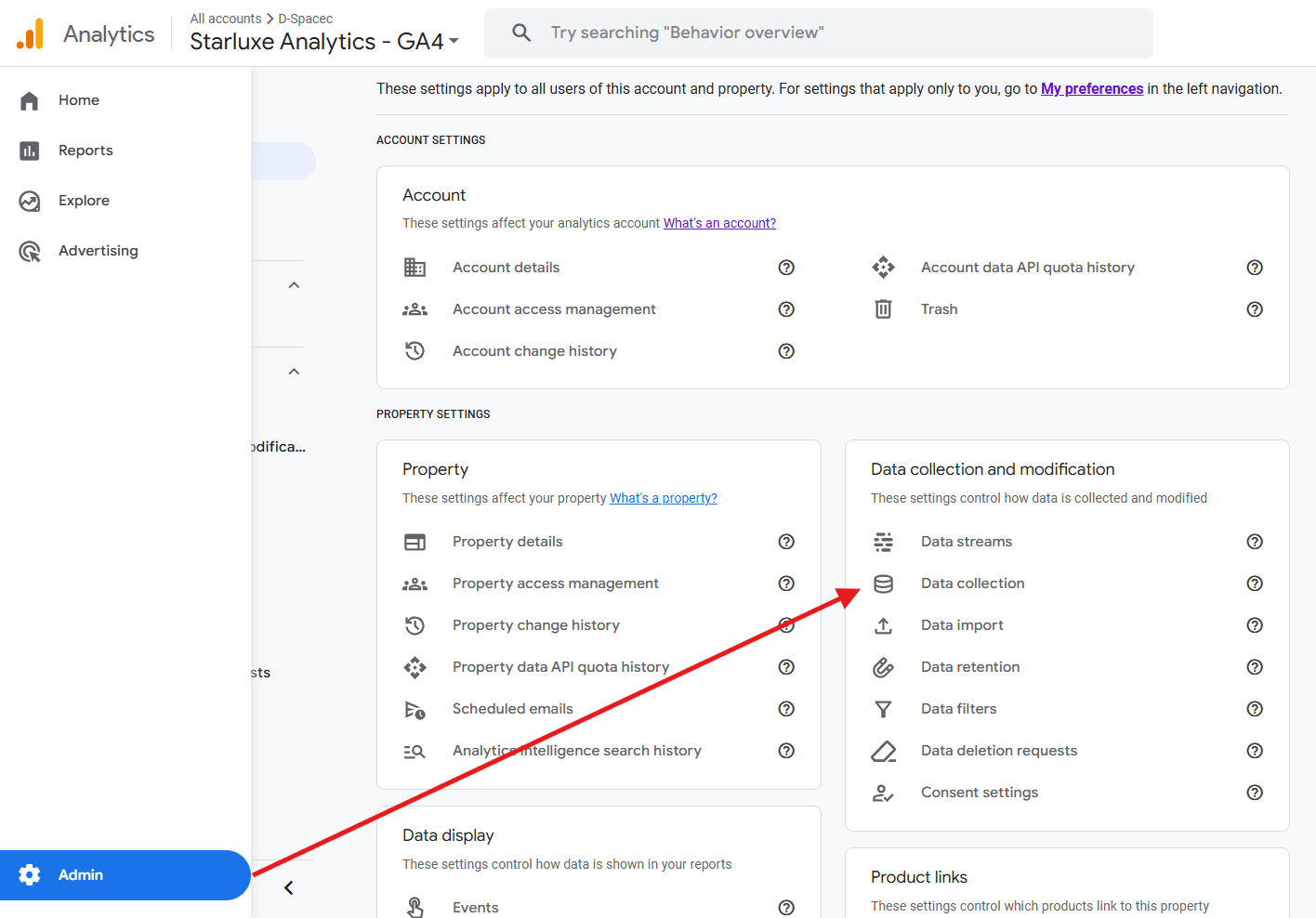
2. Enable Google Signals
- Admin → Data Collection
- Turn on Google Signals
- Acknowledge policy requirements
3. Validate Events in DebugView
- Admin → DebugView
- Trigger a product view
- Confirm
view_itemcontainsitemsanditem_id
4. Confirm Data in Google Ads
- Tools & Settings → Audience Manager
- Open GA4 data source
- Verify events and parameters are received
How Ads Are Actually Shown
Once data flows correctly:
- Merchant Center feed supplies product assets
- Responsive Display Ad provides layout
- Google injects product image, title, and price dynamically
- Ads appear on GDN, YouTube, and Gmail
Common Mistakes & Fixes
- ID mismatch: Standardize IDs via feed rules or data layer
- Missing value: Always send
valueandcurrency - Consent blocking: Check Consent Mode configuration
- Wrong vertical: Use vertical-specific parameters
How to Measure Success
GA4: Analyze conversion rate and revenue by remarketing traffic.
Google Ads: Focus on ROAS, Conversion Value / Cost, and View-through Conversions.
Final Checklist & Pro Tips
- GA4 ↔ Google Ads linked with personalization ON
- Google Signals enabled
- Required events firing with items array
- Feed IDs perfectly aligned
- Responsive Display campaign connected to feed
Pro Tips:
- Exclude recent purchasers (last 7 days)
- Apply frequency caps (5–7 impressions/day)
- Use sale price attributes for automatic “Price Drop” badges
Dynamic remarketing is not optional anymore. When implemented correctly with GA4, it becomes one of the most profitable channels in your entire media mix.


