



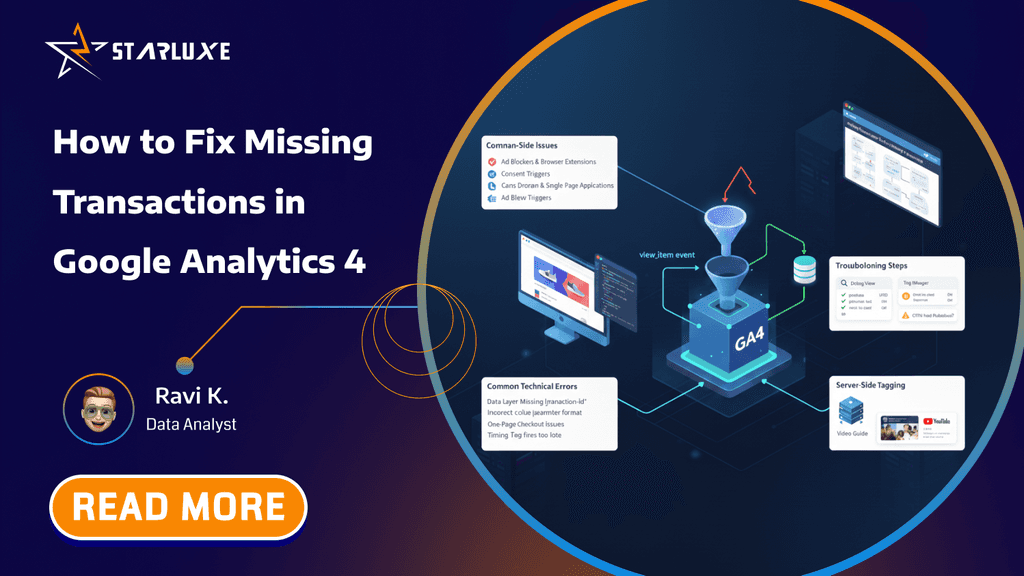
Where Did My Sales Go? How to Fix Missing Transactions in Google Analytics 4
It’s the nightmare of every digital analyst and store owner: your Shopify or WooCommerce dashboard shows 100 sales for the day, but Google Analytics 4 (GA4) only reports 80. Where did the other 20 go?
Missing transaction data isn’t just a reporting annoyance—it directly impacts Return on Ad Spend (ROAS), misguides automated bidding strategies, and slowly erodes trust in your analytics.
This guide acts as a practical diagnostic tool to help you understand why transactions disappear and how to close the gap between backend reality and GA4 reporting.
The 10% Reality Check
Before tearing apart your implementation, it’s important to set the right expectations. Google Analytics 4 is a trend-analysis tool, not an accounting system.
Unlike payment gateways such as Stripe or PayPal—which must be 100% accurate for financial and legal reasons—GA4 relies on client-side tracking scripts running inside a user’s browser.
- Normal range: 5–10% discrepancy
- Warning sign: 10–15% or more usually means something is broken
The Usual Suspects (Client-Side Issues)
If your gap is close to 10%, the cause is often the user’s browsing environment. These factors are largely outside your control—but essential to understand.
1. Adblockers & Privacy Extensions
Tools like uBlock Origin, Ghostery, and privacy-focused browsers block analytics scripts
such as gtag.js or gtm.js.
If the script never loads, the purchase never reaches GA4.
2. Cookie Consent Rejection
Under GDPR and CCPA regulations, users who reject analytics cookies cannot be tracked. If a user clicks “Reject All” and still completes a purchase, that transaction is legally invisible to standard GA4 tracking unless Consent Mode modeling is enabled.
3. Safari Intelligent Tracking Prevention (ITP)
Apple’s Safari browser applies aggressive cookie and storage restrictions. While this mainly affects attribution, strict settings can interrupt complex checkout flows and cause purchase events to drop.
Technical Setup Errors (The Fixable Stuff)
If your discrepancy exceeds 10%, the issue is almost always implementation-related—and fixable.
1. Data Layer Mismatch
GA4 is extremely strict about data types. One of the most common causes of missing revenue is sending numeric values as strings.
Incorrect: "price": "50.00"
Correct: "price": 50.00
Fix: Audit your data layer and ensure
value, price, and quantity
are passed as numbers—not strings.
Example: A Correct GA4 Purchase Data Layer
Below is a real-world example of a GA4-compliant purchase data layer.
This should fire on the order confirmation (thank you) page
or immediately after your backend confirms a successful payment.
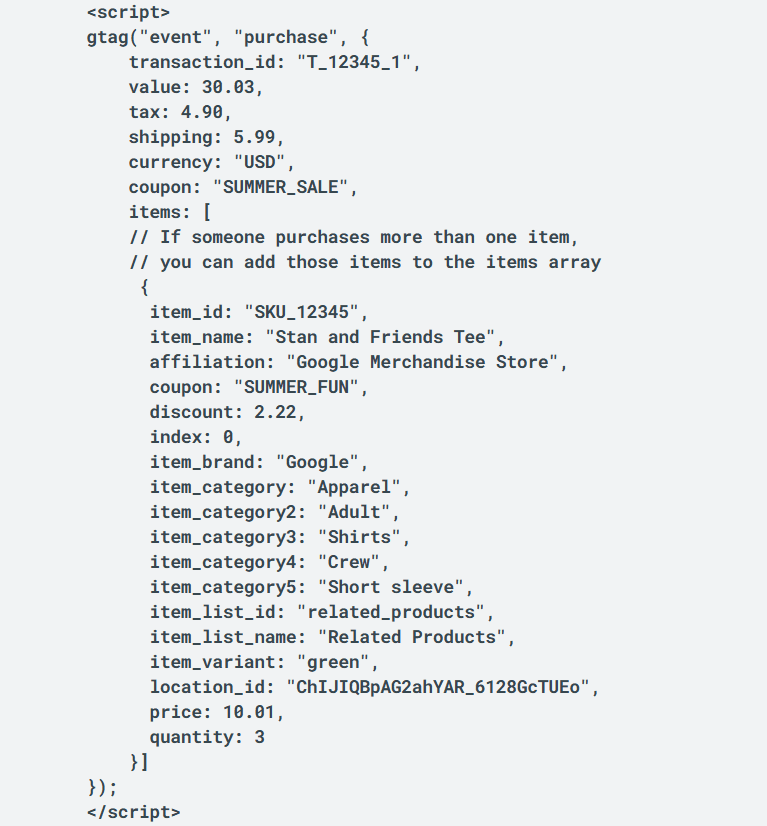
Why this works:
- All monetary values are numeric
- Unique
transaction_idprevents double counting - Explicit
purchaseevent avoids timing issues - Populated
itemsarray ensures GA4 processes revenue correctly
What a Broken Data Layer Looks Like
window.dataLayer.push({
  event: "purchase",
  ecommerce: {
    transaction_id: "ORDER_987654",
    value: "2499.00",
    currency: "INR",
    items: []
  }
});
- Revenue sent as a string
- Empty items array
- High likelihood of dropped or partial purchase data
2. The “Thank You” Page Drop-Off
This issue is extremely common with third-party payment gateways.
Scenario: A user completes payment on an external gateway and closes the tab.
Problem: The user never reaches your confirmation page where the GA4 purchase event is triggered.
Fix: Enable auto-return or forced redirects so users always land back on your site after payment completion.
3. Google Tag Manager Oversights
- Purchase tags firing on page load instead of a custom event
- User exits before the tag has time to fire
- Container updates not published
Strategic Troubleshooting: How to Find the Leak
1. Compare Transaction IDs
Export transactions from your backend platform and from GA4 (Reports → Monetization → Ecommerce purchases).
- Only PayPal orders missing → redirect issue
- Only mobile orders missing → page speed or load timing
- International orders missing → currency or localization problems
2. Use GTM Preview Mode & GA4 DebugView
- Enable GTM Preview Mode
- Complete a test purchase
- Confirm the purchase tag fires
- Verify the event appears in GA4 DebugView with correct values
Advanced Solution: Server-Side Tagging
If data accuracy is mission-critical, server-side Google Tag Manager is the gold standard.
By moving tracking from the browser to your server, purchase data can be sent directly from backend systems to GA4—bypassing adblockers and browser limitations.
- More resilient to adblockers
- Closer match to backend revenue
- Greater control over data sharing
Final Thoughts
Missing sales data feels alarming, but it’s rarely a mystery. Separate unavoidable privacy-related losses from fixable technical gaps.
Start with a data layer audit, validate your payment redirects, and remember—in a privacy-first world, 95% accuracy is the new 100%.


